
My Hands Don’t Always Cooperate. Here’s How I Designed a Workflow That Doesn’t Need Them To.
A practical setup guide for creatives and developers living with essential tremor — Mac and Windows.
A practical setup guide for creatives and developers living with essential tremor — Mac and Windows.

I gave up coffee.
I know. I know what that sounds like for someone who codes for a living. But caffeine is a trigger, and essential tremor doesn’t care about your developer identity or your 6am deadlines. So now I drink something else in the morning and pretend it’s fine.
That’s not what this article is about, but it felt like the right place to start. Because essential tremor — the kind that lives in your hands and fingers and occasionally decides to take your legs for a ride — doesn’t announce itself politely. It works around your triggers until you stop working around it, and then it reminds you who’s running things.
So I built systems instead.
First: What Essential Tremor Actually Is
It’s not Parkinson’s. I know that’s the first place your mind goes, and I get it — tremor equals Parkinson’s is a reasonable assumption if you’ve never heard of ET. But essential tremor is a neurological condition on its own terms. It’s one of the most common movement disorders in the world, and most people who have it are just quietly rearranging their lives around it while everyone assumes they’re nervous or had too much coffee.
Triggers vary, but mine are consistent: stress, fatigue, and caffeine. The hands and fingers are the primary zone. Key combinations are particularly rough — holding one position with one hand while pressing another creates a static tension that’s its own invitation for things to go sideways. On a bad day my legs join in with what I’ve come to call the “weird bendy thing,” which is exactly as undignified as it sounds.
I’m on a low-dose propranolol prescription. I’ll tell you what my body told me: it’s doing approximately nothing.
Magnesium, though? Magnesium is actually doing something.
The Setup I Wish Someone Had Handed Me

I spent a long time trying to muscle through instead of designing around. This was the wrong approach. Here’s what actually changed things — broken out by platform so you can go straight to what applies to you.
If You’re on a Mac
Go here first: System Settings > Accessibility
The single most useful setting I found was Sticky Keys. If you do nothing else on this list, do this one. Sticky Keys lets you press modifier keys sequentially instead of simultaneously. Cmd + C becomes: press Cmd, release, press C. The computer waits for you. That static hand tension from holding a modifier while hunting for another key? Gone. This setting exists specifically for motor accessibility and most people have never heard of it.
While you’re in there:
- Slow Keys — adds a brief delay before a keypress registers. Stops the accidental double-hits that happen when your hand bounces off the same key twice.
- Pointer Control > Cursor Speed — slow it down significantly. Counterintuitive, but less cursor travel per inch means more control over where you actually land.
- Cursor Size — make it bigger. A larger target is easier to find and easier to hit.
- Voice Control — turn it on. You don’t have to use it every day, but on a bad day you can run your entire computer by voice. It’s better than most people expect.
- Ignore built-in trackpad when mouse is connected (also in Pointer Control) — accidental trackpad brushes during a tremor episode are their own specific flavor of chaos. Kill this option.
One honest note for Mac users: there is no direct Mac equivalent of SteadyMouse (more on that below). The built-in pointer settings plus a trackball is the closest native solution. Slowing your cursor speed down significantly is doing a lot of that work.
If You’re on Windows
Go here first: Settings > Accessibility > Keyboard (Windows 11) or Settings > Ease of Access > Keyboard (Windows 10)
Sticky Keys works the same way as on Mac — sequential key presses instead of simultaneous holds. Turn it on. Same logic, same relief.
Windows also has Filter Keys, which gives you three additional controls Mac doesn’t offer in the same granularity:
- Slow Keys — the keyboard won’t register a key until it’s been held for a moment, which prevents accidental taps from going through
- Repeat Keys — adjusts or disables the key-repeat function so holding a key doesn’t flood your document with repeated characters
- Bounce Keys — tells Windows to ignore a second press of the same key within a set time window, stopping double-hit errors
For the mouse: Control Panel > Mouse > Pointer Options. Drag the pointer speed slider left. Same principle as Mac — slower speed, more control per movement.
SteadyMouse — the Windows exclusive worth knowing about
This is the one piece of the puzzle that Windows users have and Mac users don’t. SteadyMouse is software specifically built for essential tremor and Parkinson’s that filters the shaking motion out of your cursor before it ever reaches the screen. It also blocks accidental clicks and has an Icon Targeting System that snaps your cursor to where it was actually trying to go. There’s a free trial and a 70-day refund policy. If you’re on Windows, this is the first thing to try. It’s been around since 2005 and the reviews from people with ET are consistently strong.
Windows Speech Recognition is built into the OS (search for it in Settings) and works for hands-free computer control on bad days. Dragon NaturallySpeaking is the paid upgrade if you need more precision.
Hardware: The One Upgrade Worth Making on Either Platform
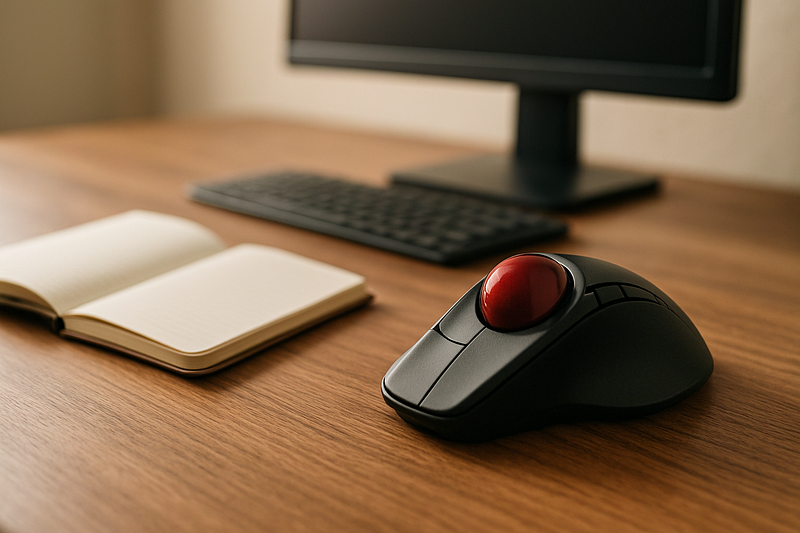
If you’re still using a standard mouse — even an ergonomic one — you’re still moving your whole hand to move the cursor, which means every tremor goes directly into your cursor path.
A trackball mouse changes the physics of the problem. The mouse body stays completely still on your desk. You move the ball with your thumb. Your arm rests. The Logitech MX ERGO S Plus is the one worth buying on either platform — adjustable tilt, programmable buttons, and your wrist finally gets to stop working. Logitech claims 20% less muscle strain than a traditional mouse. For tremor users the difference is more significant than that.
Software Worth Installing (Both Platforms)
Keyboard Maestro (Mac) or AutoHotkey (Windows, free) — remap any complex key combination to a single keystroke. You build it once. Cmd+Shift+Opt+whatever becomes F6. You never hold three keys simultaneously again.
Text expansion is also worth setting up. On Mac, Keyboard Maestro handles it. On Windows, the AutoCorrect feature in Microsoft Word does this natively, and the Auto Text Expander Chrome extension covers browser-based work. The goal is the same: fewer keystrokes, less hand load.
The Systems Lens (Because That’s Actually What This Is About)
Here’s what I learned: you don’t win by fighting the tremor. You win by designing a workflow that doesn’t require you to.
That means knowing your window. Tremor is worse with fatigue, so precise mouse work goes at the beginning of the session, not the end. Complex tasks get front-loaded. Bad days are built into the plan rather than treated as failures of the plan.
It also means being honest about what the triggers actually are. Caffeine, stress, and fatigue are not random. They’re predictable. And predictable things can be planned around.
I didn’t arrive at this gracefully. I arrived here by spending a long time being annoyed that my body wasn’t cooperating with my to-do list, which — as strategies go — was spectacularly ineffective.
The tools help. The settings help. But the real shift was deciding that this is a systems problem, not a willpower problem. And systems problems have solutions.
The Short List

Mac:
- Sticky Keys (System Settings > Accessibility > Keyboard)
- Slow Keys (same location)
- Slow cursor speed way down (Pointer Control)
- Disable trackpad when mouse is connected (Pointer Control)
- Voice Control for bad days
Windows:
- Sticky Keys (Settings > Accessibility > Keyboard)
- Filter Keys: Slow Keys, Repeat Keys, Bounce Keys (same location)
- Slow pointer speed (Control Panel > Mouse > Pointer Options)
- SteadyMouse software — tremor filtering for your cursor
- Windows Speech Recognition for hands-free control
Both platforms:
- Trackball mouse — Logitech MX ERGO S Plus
- Keyboard remapping (Keyboard Maestro on Mac, AutoHotkey on Windows)
- Text expansion to reduce keystroke volume
- Front-load precision work before fatigue hits
- Magnesium — worth trying if you haven’t (I’m not your doctor, consult yours)
Melanie Brown is the founder of Bluedobie Developing, a rural Kentucky-based SaaS and web development company, and the creator of DobieCore — an AI content platform engineered to give small business owners professional results without the prompt engineering learning curve. She writes the Bluedobie Dialogues series about systems thinking, sustainable business architecture, and what durability actually looks like in practice.